All projects
Manta app icon

Project

Manta

A native Jellyfin client for Apple TV, iPhone and iPad.

Manta turns a Jellyfin server into a streaming experience that feels native on Apple hardware — one app across all three devices, tuned per input model: touch and a full-screen landscape player on iPhone and iPad, the focus remote on Apple TV.

It is a client only: it plays what your server already holds. Manta hosts no media, ships no catalogue, and is an independent third-party client — it is not affiliated with, endorsed by, or officially associated with the Jellyfin project.
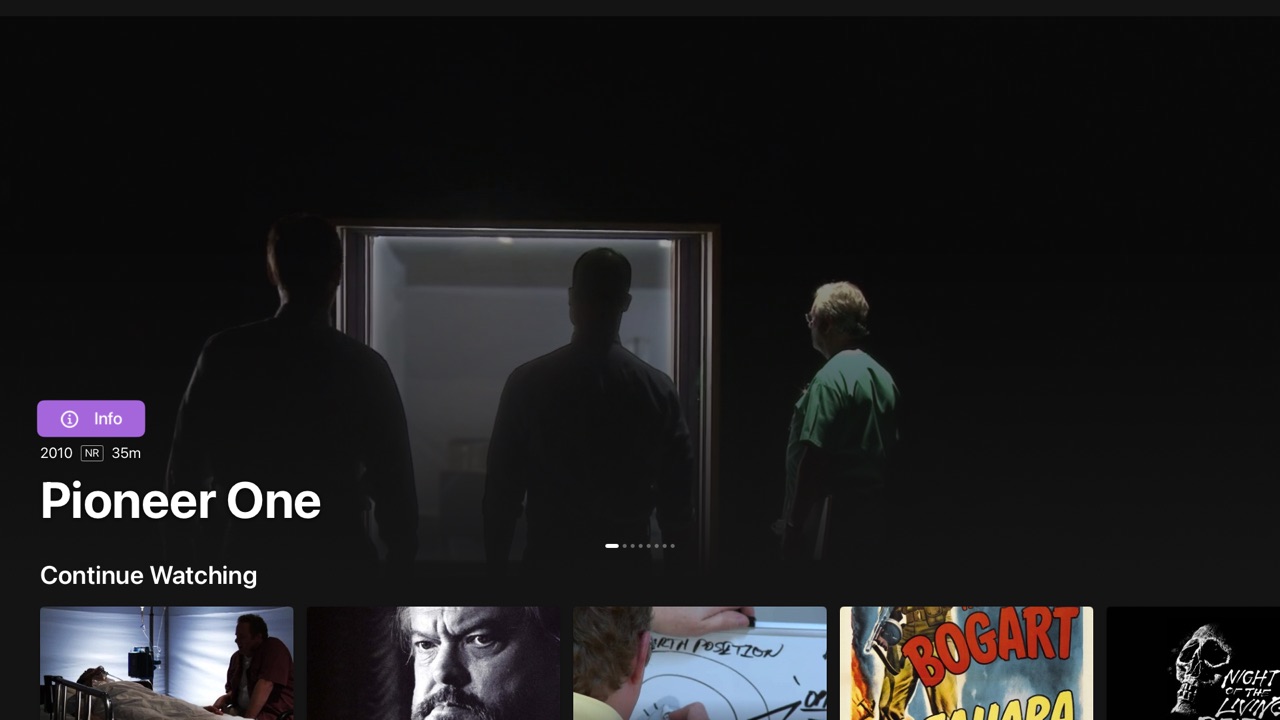
Manta's home screen on Apple TV: a full-bleed spotlight banner above rows of artwork
Home on Apple TV — spotlight banner, Continue Watching, Next Up.
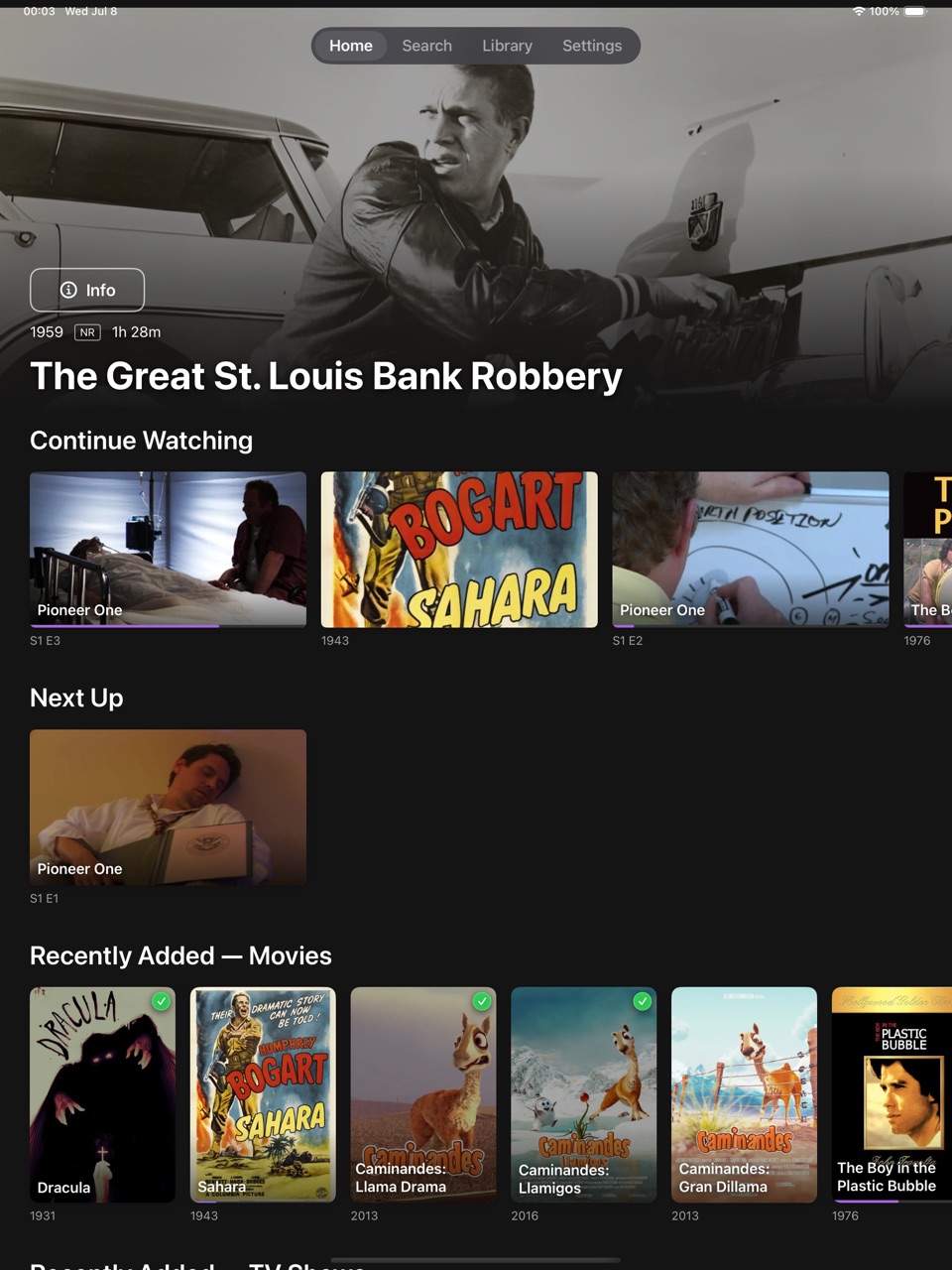
Manta's home screen on iPad
iPad
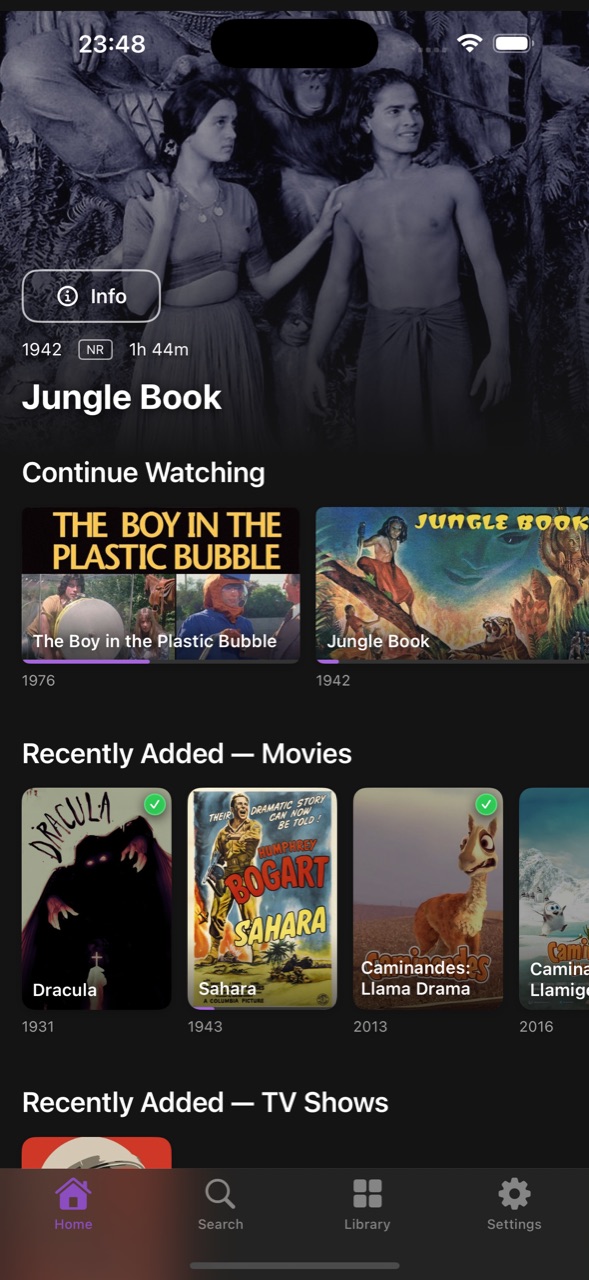
Manta's home screen on iPhone
iPhone

FAQ

Questions and answers

How do I connect Manta to my Jellyfin server?

Point Manta at the same address you would open in a browser, including the scheme and the port — for example https://jellyfin.example.com or http://192.168.1.20:8096. Then sign in with your Jellyfin username and password, or use Quick Connect.

If the server is not found:

  • Confirm the device and the server can reach each other — a LAN-only address will not work from mobile data.
  • Include the port unless your reverse proxy serves Jellyfin on 443.
  • Prefer HTTPS when the server is reachable from the internet; the connection is only as private as the transport your server offers.
How does Quick Connect work?

Quick Connect signs you in without typing a password on a remote — the reason it exists on Apple TV.

  1. Enable Quick Connect once on the server, in the Jellyfin dashboard’s general settings.
  2. Choose Quick Connect in Manta. It shows a short code.
  3. Open Jellyfin in a browser on a device where you are already signed in, go to Quick Connect in your user menu, and enter the code.

The code is single-use and expires quickly; request a new one if it lapses.

Can several people — or several servers — share one device?

Yes. Add each Jellyfin user as its own profile; profiles may live on different servers. The profile picker appears on launch, and you can switch at any time.

Each profile carries its own playback-quality setting and preferred audio and subtitle languages, and reports watched state to its own server — so one household member’s Continue Watching never bleeds into another’s. Removing a profile deletes its stored credentials from the device.

How do I make sure a file Direct Plays instead of transcoding?

Manta asks for Direct Play first, so transcoding is the server’s decision, made when the device cannot handle the stream as-is. The usual causes:

  • Quality cap. A per-profile quality limit below the file’s bitrate forces a transcode. Set it to the original quality on a fast local network.
  • Codec. Apple hardware decodes H.264, HEVC and (on recent chips) AV1. Anything else — VC-1, MPEG-2, most VP9 — is transcoded.
  • Subtitles. Image-based subtitles (PGS, VOBSUB) that have to be burned in force a full video transcode. Text subtitles (SRT, ASS) do not.
  • Audio. The video can Direct Play while only the audio is converted — that is normal and cheap.

Jellyfin’s playback dashboard shows, per active stream, whether it is direct or transcoded and why.

Why don't I see Skip Intro on my library?

Manta does not detect intros itself — it shows the markers your server reports. If no button appears, the server has no segment data for that episode yet.

Intro and credit markers come from Jellyfin’s media-segment support, populated by a segment-provider plugin that scans the library. Install and run it on the server, let the scan finish, and the buttons appear for every episode it managed to analyse. Shows with no recurring intro, or with too few episodes to compare, may never produce a marker.

How do I get the Upcoming calendar?

Upcoming is optional and server-driven: it appears once the Jellyfin Enhanced plugin is installed on your server and supplying release data. Without it, Manta simply omits the section.

Can I try Manta before subscribing?

Two ways, depending on what you want to see.

  • Free trial. A one-time introductory free trial is offered on the subscription, which unlocks the full app against your own server. The current length and price are shown in the app at the point of purchase. It runs through your Apple Account and becomes a paid subscription unless you cancel before it ends.
  • Demo mode. With no subscription or trial running, the app connects to the public Jellyfin demonstration server at demo.jellyfin.org. That server belongs to a third party — it may be slow or unavailable, and its content can change without notice — so it shows you the interface, not how your own library will feel.

Connecting Manta to your own server needs an active subscription or trial. The binding details are in the terms of use.

How do I manage or cancel the subscription?

The subscription is an Apple in-app purchase, so it is managed entirely through your Apple Account — open the subscriptions section of the device’s system settings, or the account menu in the App Store, and change or cancel it there. We cannot cancel or refund it on your behalf; refunds are handled by Apple.

A subscription bought on one platform covers the others, as long as every device uses the same Apple Account.

Where are the open-source licences?

In the app under Settings → Legal → Open-Source Licenses, and on the web at Manta — Open-Source Licenses, which also carries the LGPL written offer for the corresponding source of the bundled libraries.

Changelog

What shipped, and when

  1. Version 1.0

    Latest

    Initial release

    • Universal app for Apple TV, iPhone and iPad (tvOS / iOS / iPadOS 17 and later).
    • Home dashboard with a full-bleed spotlight banner, Continue Watching, Next Up, Recently Added and recommendations.
    • Direct Play with hardware-accelerated decoding, HDR and Dolby Vision tone-mapping, multichannel audio, and embedded or external subtitles.
    • Full-screen landscape player with tap-to-scrub on iPhone and iPad; focus-remote player on Apple TV.
    • Next-episode auto-play with countdown, in-player episode switching, and Skip Intro / Skip Credits markers.
    • Library browsing by movies, shows, collections and playlists, with sorting, filters and full-library search.
    • Movie and series pages with cast & crew, “More Like This”, synopses, ratings and media badges.
    • Multiple user profiles across multiple servers, with a profile picker and per-profile playback and language preferences.
    • Sign-in by username and password or Quick Connect; optional Upcoming calendar via the Jellyfin Enhanced plugin.